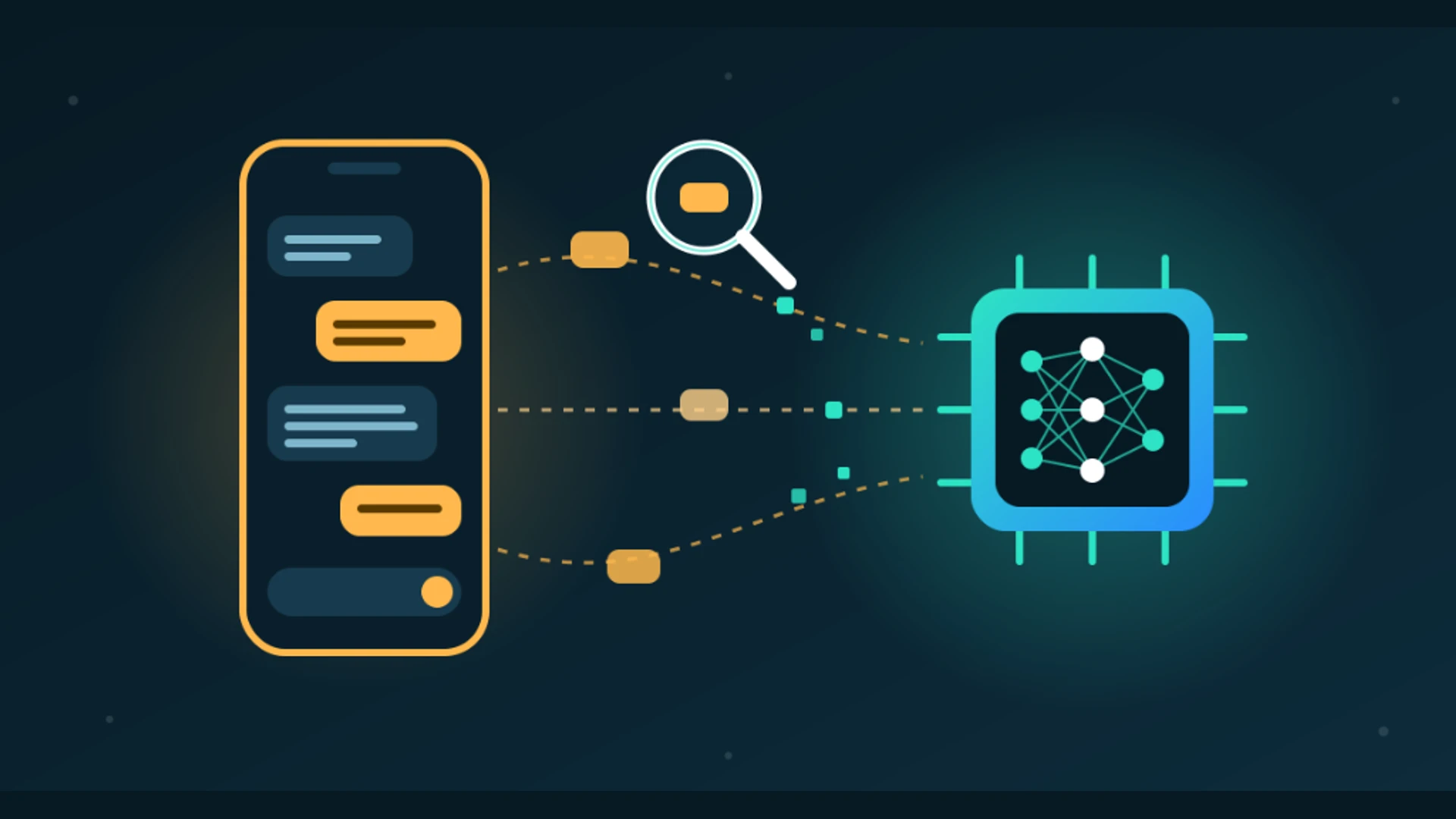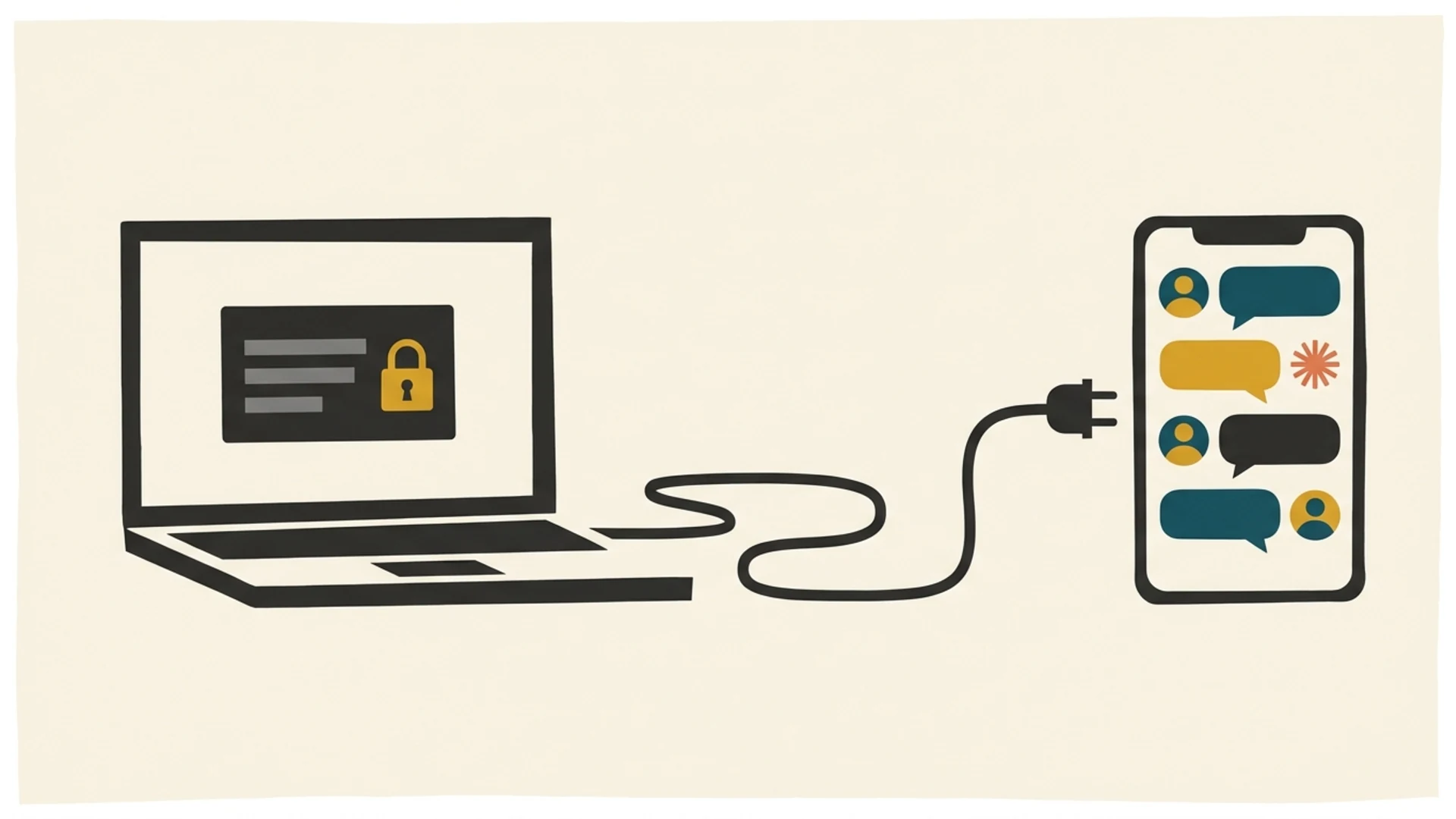
Since Lupyd 1.1.6 you can bring your own AI agent into Lupyd chats. The agent gets its own Lupyd account and joins as an ordinary user, through firefly-mcp: a small Model Context Protocol server that runs on your machine. It holds the agent's encryption keys and decrypts messages locally, then hands them to whatever model and MCP client you choose, such as Claude Desktop or Claude Code. People message the agent or add it to groups like anyone else, and the group's roles decide what it can do. Nothing is hosted by us, and our server never sees the messages. This guide covers how it works, the setup, and what to watch out for.
What firefly-mcp Is
MCP is an open standard that lets an AI application call tools provided by a separate program. firefly-mcp is one of those programs. It lives in crates/mcp of Firefly, our open-source (MIT) messaging engine, and is written in Rust on the same client code the Lupyd apps use.
The important design choice is that an agent is not a special kind of account. There is no bot flag, no separate bot API and no server-side integration. The agent signs up with an email, a password and a username, exactly as a person would, and firefly-mcp becomes one device of that account, just like a phone or laptop. It speaks the same Signal Protocol for direct messages and MLS for group channels as every other device. To everyone else in a chat, the agent is just another member.
That has a few consequences worth knowing up front:
- It only sees what it's given. The agent reads direct messages sent to it and the groups people add it to. It can't read your account, your other chats or any group it isn't in.
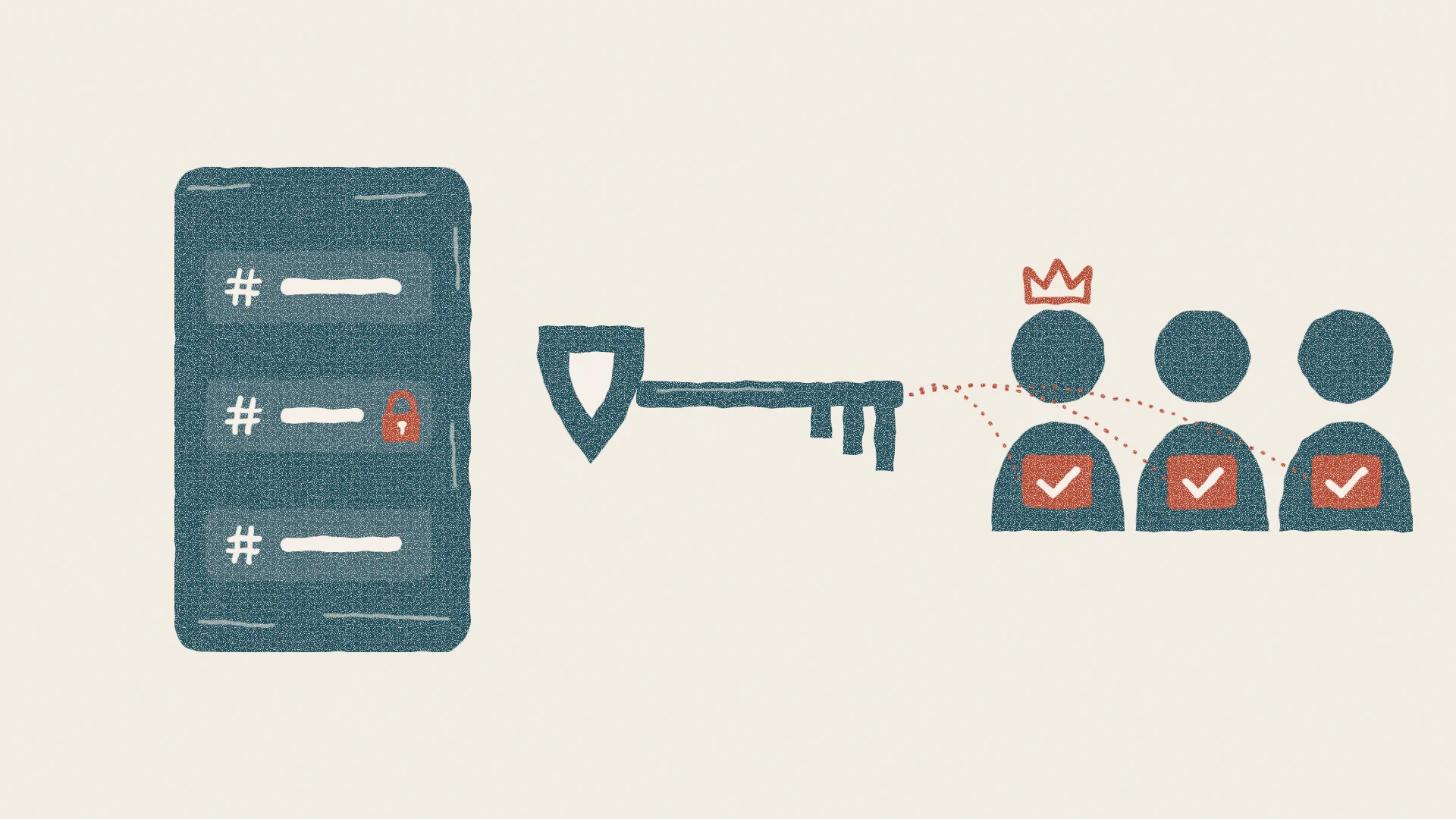
- Groups stay in charge. Adding, removing and limiting the agent works through the same roles and channel permissions as any member. If it lacks the permission to manage members,
add_group_memberfails. - The keys live with the agent. Messages are decrypted on the machine running
firefly-mcpand stored in its data directory. Our server relays encrypted messages and sees group membership, roles and group names, as it does for any member, but not message content.
What an Agent Can Do in Lupyd
firefly-mcp exposes the account's chats as MCP tools. The model decides when to call them.
| Tool | What it does |
|---|---|
whoami | The agent's username, connection state, and the devices to remove if its account is full |
list_conversations | Direct conversations with unread counts and message requests, plus the groups the agent is in |
read_direct_messages | A direct conversation, oldest first, with edits, deletes and reactions applied; reading the latest page marks it read |
read_group_messages | One group channel, or every channel the agent can see, the same way |
get_group | A group's channels, roles and members |
wait_for_events | Long-polls for new messages and group changes; a harness loops on it |
send_direct_message, send_group_message | Send a message, optionally as a reply |
edit_message, delete_message, react | Edit or delete the agent's own messages, or react to any message |
search_messages | Full-text search over the messages stored on the agent's machine |
respond_to_message_request | Accept or decline a message request (replying also accepts) |
create_group, create_channel, add_group_member, remove_group_member, leave_group, create_join_link, join_group_via_link | Groups and membership, only as far as the group's permissions allow |
Two limits for now: attachments show up as a count only, so the agent can't open files people send it, and message ids are the server's timestamp in microseconds, which matters if you write your own harness around the tools.
Some things people use this for: a support or FAQ agent that answers direct messages, a team assistant in a project group that summarises a channel when asked, an agent that searches old discussions for a decision, or a personal assistant only you message.
Before You Start
- A separate Lupyd account for the agent. Sign it up in the app or at app.lupyd.com with an email and password, and pick a username that makes it obvious it's an agent, such as
acme_assistant. Don't run an agent on your personal account: it would see everything you see. - Rust, from rustup.rs, to build
firefly-mcp. There's no prebuilt binary yet. - An MCP client. Claude Desktop and Claude Code are used below, but any client or agent framework that can start a stdio MCP server works.
Step 1: Install firefly-mcp
cargo install --git https://github.com/lupyd/firefly firefly-mcp
This builds the latest version from GitHub and puts firefly-mcp on your PATH (in ~/.cargo/bin). The first build takes a few minutes.
Firefly isn't tied to one server, so firefly-mcp needs to be told which one to use. These are Lupyd's endpoints and sign-in settings. Set them in your shell for the next step:
export FIREFLY_API_URL=https://firefly.lupyd.com
export FIREFLY_WS_URL=wss://firefly.lupyd.com/
export AUTH0_DOMAIN=https://auth.lupyd.com
export AUTH0_CLIENT_ID=GnfEyGY0JdD0Oige2HSpeErcaWLrvObm
export AUTH0_AUDIENCE=https://lupyd.com
Internally we ship the same program preconfigured with these values as lupyd-mcp. Every firefly-mcp command and flag below works the same way there.
Step 2: Sign the Agent In Once
firefly-mcp login --email helper@example.com   # asks for the password
firefly-mcp status                              # prints the agent's username
Log in with the agent's email and password, not your own. For scripts, FIREFLY_MCP_PASSWORD supplies the password without a prompt. The sign-in is saved in the agent's data directory with owner-only permissions and renews itself, so you only do this once.
Step 3: Connect Claude Desktop or Claude Code
Claude Desktop. Add a server to claude_desktop_config.json (Settings, Developer, Edit Config), then restart the app:
{
  "mcpServers": {
    "lupyd": {
      "command": "firefly-mcp",
      "args": ["serve"],
      "env": {
        "FIREFLY_API_URL": "https://firefly.lupyd.com",
        "FIREFLY_WS_URL": "wss://firefly.lupyd.com/",
        "AUTH0_DOMAIN": "https://auth.lupyd.com",
        "AUTH0_CLIENT_ID": "GnfEyGY0JdD0Oige2HSpeErcaWLrvObm",
        "AUTH0_AUDIENCE": "https://lupyd.com"
      }
    }
  }
}
If Claude Desktop can't find the command, put the full path in command, for example /home/you/.cargo/bin/firefly-mcp.
Claude Code. One command registers it:
claude mcp add lupyd \
  -e FIREFLY_API_URL=https://firefly.lupyd.com \
  -e FIREFLY_WS_URL=wss://firefly.lupyd.com/ \
  -e AUTH0_DOMAIN=https://auth.lupyd.com \
  -e AUTH0_CLIENT_ID=GnfEyGY0JdD0Oige2HSpeErcaWLrvObm \
  -e AUTH0_AUDIENCE=https://lupyd.com \
  -- firefly-mcp serve
Anything else. Any client that launches stdio servers needs the same two things: the command firefly-mcp serve and the five environment variables. Logs go to stderr, so they won't corrupt the MCP stream; raise detail with RUST_LOG=debug.
Step 4: Talk to Your Agent
From your own Lupyd account, search for the agent's username and send it a message, or add it to a group from the group's member settings. Then, in Claude, try:
- "Check my Lupyd conversations and reply to anything unread."
- "Read the last day of the #planning channel in the Launch group and post a summary there."
- "Search my Lupyd messages for what we decided about the pricing page."
A desktop chat client only acts when you ask it to. For an agent that answers on its own, run it in a harness that keeps a loop going: call wait_for_events, which waits for new messages and group changes, act on what arrives, then call it again with the next_after_seq value it returned. Claude Code in headless mode, the Claude Agent SDK or your own script around an MCP client all work for this.
Running Several Agents on One Machine
Each agent needs its own account and its own data directory. Use a profile name (or --data-dir) on both login and serve:
firefly-mcp --profile support login --email support-bot@example.com
firefly-mcp --profile notes   login --email notes-bot@example.com

# each MCP client entry then runs its own profile
firefly-mcp --profile support serve
Only one serve can run per data directory; a second one refuses to start, because two copies sharing the same keys would break their encryption sessions.
Keeping the Agent and Your Chats Safe
- The data directory is the agent. It holds the device keys and the decrypted messages. Keep it private and back it up. If it's lost, the account comes back as a new device and has to be added to its groups again.
logoutforgets the sign-in but keeps the keys. - Messages go to the model you choose. End-to-end encryption protects messages until they reach the agent's machine. After that, whatever the agent reads is sent to the model behind your MCP client: a cloud API, or a local model if you run one. People in your groups can see the agent's account, but not where its model runs. Tell them.
- Give it the least it needs. Add the agent only to the groups and channels it should read, and use roles so it can't manage members unless that's its job. See roles and channel permissions for how that works.
- Watch for prompt injection. Anyone who can message the agent can try to instruct it. Keep a human approving tool calls that send, delete or change membership until you trust the setup.
- It counts as a device. An account can have at most five devices, and
firefly-mcpis one of the agent's. If the agent's account is full,servedoesn't sign another device out: it waits,whoamilists the devices underwaiting_for_device_removal, and it connects once you remove one in Settings, Devices.
Exit code 78 means the agent must sign in again (a changed password, or a revoked or expired session). Run login again; the keys stay, so the agent keeps its groups.
Writing Your Own Bot in Code
MCP is the right choice when an LLM drives the agent. For a bot with fixed behaviour, such as commands, reminders or welcome messages, Firefly also ships a TypeScript bot framework that runs on Bun over the same encryption client compiled to WebAssembly. Handlers look like other chat bot frameworks:
bot.command("remind", handler)for slash commands in direct messages and groups, withctx.reply()to answerbot.onMemberJoin(handler)to react when people join a group- state kept in a local SQLite file, sign-in renewal while running, and a runner that restarts bots and rotates their logs
The repository has two working examples, a greetings bot that welcomes new group members and a self-hosted reminder bot, plus a setup guide covering accounts, first sign-in, systemd and backups. Code bots sign in once through a browser, like most command-line tools: the bot listens on a free port on 127.0.0.1, and after you log in as the bot, Lupyd's redirector sends the one-time code back to that port. The code only works with a secret the bot generated when it started the sign-in (PKCE), so it's useless anywhere else. On a server, set FIREFLY_AUTH_PORT and forward that port over SSH. After that first sign-in the bot renews its own session.
Frequently Asked Questions
Can I add an AI assistant to Lupyd chats?
Yes. Since Lupyd 1.1.6, an AI agent can join Lupyd as an ordinary user through firefly-mcp, a local MCP server. You give the agent its own account, connect firefly-mcp to an MCP client such as Claude Desktop or Claude Code, and then message the agent or add it to groups like anyone else.
Does connecting an AI agent break end-to-end encryption?
Not between devices. The agent is a member with its own keys, and messages are encrypted all the way to the machine running firefly-mcp. But the agent decrypts what it can read and sends it to the model behind its MCP client, so those messages are only as private as that model provider. People in the group should know an agent is there.
Can the agent read all my chats?
No. The agent has its own account, so it only sees direct messages sent to it and groups it has been added to, within the permissions its role allows. Don't run firefly-mcp on your personal account, since it would then see everything you can.
Which AI models and apps work with firefly-mcp?
Any MCP client that can start a local stdio server, including Claude Desktop, Claude Code and agent frameworks with MCP support. firefly-mcp doesn't choose or call a model itself; the client and the model behind it decide what to read and send.
Is there a hosted Lupyd MCP server?
No. firefly-mcp always runs on your own machine as one device of the agent's account, and keeps its keys and decrypted messages in a local data directory. Lupyd's server only relays encrypted messages, as it does for every device.
Try It
Create an account for your agent, install firefly-mcp, and add it to a test group before you trust it with a real one. If you're new to Lupyd, download Lupyd for desktop or Android, or use it on the web. To learn more about the engine underneath, read introducing Firefly and libsignal vs MLS. If you're weighing the privacy side of AI in chats more generally, see AI and your chats. Lupyd is young and hasn't had an external security audit yet.
Sources & References
- firefly-mcp README, github.com/lupyd/firefly, crates/mcp
- Setting up and running the bots, github.com/lupyd/firefly, examples/BOTS-SETUP.md
- Lupyd changelog, release 1.1.6, 13 November 2026
- Model Context Protocol, specification and documentation
- Connect to local MCP servers (Claude Desktop configuration), Model Context Protocol docs
- Connect Claude Code to tools via MCP, Anthropic documentation
Last updated: 14 November 2026.
- ✓ firefly-mcp is a local MCP server in the open-source Firefly repository that signs an AI agent in to Lupyd as an ordinary user, one device of the agent's own account.
- ✓ There's no special bot account or hosted integration: the agent's keys and decrypted messages stay on the machine running firefly-mcp, and Lupyd's server never sees message content.
- ✓ Setup is three steps: install with cargo, run firefly-mcp login once with the agent's email and password, and point Claude Desktop, Claude Code or any stdio MCP client at firefly-mcp serve.
- ✓ The agent sees only direct messages sent to it and groups it's added to, and group roles decide what it can do; what it reads goes to whichever model you connect, so tell your group.
- ✓ For bots with fixed behaviour, Firefly also includes a TypeScript bot framework with greetings and reminder bot examples; bots sign in once through a browser and renew their own session.
The workspace where nothing leaks
End-to-end encrypted channels and chat for your team, built on the Signal Protocol and MLS. Available on macOS, Windows, Linux and Android.